Making a Client Access connection over TCP/IP, PC5250 may report a Program Check 706 (PROG 706) error. The text of this message is, An SNA message was received with incorrect chaining.
This usually indicates a network issue. Check the average time for a PING. Also, try the following:
ping -l 1000 [AS/400name]
This will PING the AS/400 system with 1000 bytes of data rather than the 10 bytes of a regular PING. This may yield a very high average time, or it may time out. In this case, the network is most likely loosing frames. A lost frame will result in a TCP protocol error.
Theoretically, protocol errors should not be reported to the PC5250 application, but in this case they might. The error text indicates an SNA error because the PROG message text was written prior to SNA connectivity for this product. The PC5250 interprets a missing frame as an SNA chaining error.
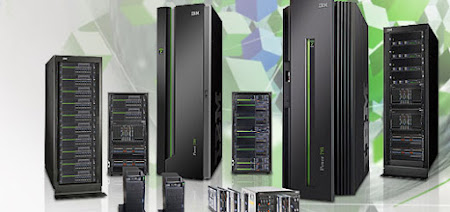
IBM Power Systems
Showing posts with label Basic Concepts. Show all posts
Showing posts with label Basic Concepts. Show all posts
Wednesday, June 30, 2010


Automatic System Tuning
Tuning is a way of adjusting the performance of a system. For basic tuning, automatic system tuning is a useful method to maintain good performance. This can be done by setting the system value QPFRADJ to indicate that system tuning adjustments are performed at IPL time or dynamically while the system is running.
Do not use the QPFRADJ value and the SETOBJACC command at the same time for a shared pool. QPFRADJ removes storage from a shared pool that has no paging activity. If the SETOBJACC command is used to preload an object into the same pool, it may lose some of its storage. The SETOBJACC command is used to cause no page faulting to occur in the pool, and QPFRADJ would consider that pool a prime candidate for removing storage.
In some cases, QPFRADJ at IPL should not be used because IPL tuning can undo acceptable performance that is achieved by dynamic tuning or manual tuning done during normal system operation. In an environment with the same number of active jobs and no new applications, QPFRADJ is set to 0 after it has been used to obtain optimal paging rates across the system.
Can IASP data be saved in Restricted system state?
If the system is in restricted state, it is possible to save the security data by using the command SAVSECDTA ASPDEV(*ALLAVL). This command will save the private authorities for all available IASPs.
To save the IASP at V5R2, it must be in AVAILABLE or ACTIVE status. The IASP status changes from AVAILABLE to ACTIVE when all subsystems are closed because the jobs that service the ASP are under QSYSWRK.
Starting from V5R3, it is possible to save the IASP only if it is in AVAILABLE status. This does not mean that the security data cannot be saved if the system is in restricted status because if the IASP is AVAILABLE before the closure of all subsystems, the status will not be changed to ACTIVE any more. In fact, the jobs that service the IASP are system jobs that are no longer under subsystem QSYSWRK, so they will not be ended any more when going to restricted state.
Group Profile Names Cannot Be Used for Authentication
User names that are group profiles cannot be used as the Security Server ID when security is enabled with the LocalOS user registry. Nor can group profiles be used to authenticate to IBM® WebSphere® Application Server when attempting to access any protected WebSphere resource. Use the DSPUSRPRF command to determine if a user profile is used as a group profile. Each such user profile is assigned a unique group ID number.
What happens if the QSECOFR user profile gets deleted?
If the QSECOFR user profile gets deleted from the system, the best way to ensure it is properly re-created is to restore it from your latest full system backup tapes or security backups (created with the SAVSECDTA command).
This ensures that all authorities are returned. (Others who might have security authorities might not have the complete range of special authorities and, therefore, cannot authorize other users to these.) If full system or security backups are not available, the default values for QSECOFR can be restored from PID tapes or CD-ROM.
This ensures that all authorities are returned. (Others who might have security authorities might not have the complete range of special authorities and, therefore, cannot authorize other users to these.) If full system or security backups are not available, the default values for QSECOFR can be restored from PID tapes or CD-ROM.
Monday, March 29, 2010
Data Transfer from an IBM System i or iSeries or AS400
To access Data Transfer From iSeries Server, use one of the following methods:
1. Open the iSeries Access group of icons, and select the Data transfer from iSeries icon.
2. Using menus, go to Start, Programs, IBM iSeries Access for Windows, and Data transfer from iSeries.
3. Right-click on the Desktop, select New, and select Data transfer from iSeries.
4. From a PC5250 emulation screen, click on the Recv button (or use the menu options under Transfer).

First, check the IBM System i system name, and ensure it is the system you want to transfer data from.
For this example, we used a table from the QIWS library called QCUSTCDT. IBM includes this file with Option 12 (Host Servers) of the operating system. It is a simple file containing 12 records. The records contain character and numeric data.
The options available for the File name are to type in the library/filename, Browse for the library/filename, or Browse after entering the desired library so that the desired library is added to the list (used if you know the library name and the library is not in the initial library list associated with the job description on the user profile making the connection. For example, the library is not in the list when clicking on Browse without typing anything in the box).
The next option, PC Output Device, can be set to transfer the file to the Display, File (most commonly used), HTML, or Printer.
The last option on this screen is to type the PC File name (if you select the File option previously mentioned). The PC file name should include the path and can be a new file name you want to create, a file name you want to overwrite, or a file name you want to append to.
Once all of the parameters are selected, the window looks similar to the following:

You will notice that we typed in the full path for the file we want to use on the PC and gave it a .TXT extension. If we were going to transfer the file as an Excel file, we would have typed in C:\QCUSTCDT.XLS. It is a good idea to add a file extension; however, is not necessary in all cases.
Check the transfer details by clicking on the Details button. A screen similar to the following is shown:

The top frame contains information about the file that is to be created. The top option (Overwrite existing File) indicates whether to overwrite the file on the PC, if it already exists. In our case, data transfer will look for C:\QCUSTCDT.TXT and, if it is found, the file will be overwritten. The next parameter is File Type. The default is ASCII text, which in our case is fine. Different file types can be specified using the pulldown list.
The lower frame is where you will specify if you will be saving information about the file. The File Description File (FDF) is an ASCII text file that contains information such as field names, the type of file, and file format options. This option should be selected if you plan to send the file back to the System i database.
The PCFDF indicates that this is a PC File Description File. PCFT 1 indicates that this is an ASCII text file layout. PCFO defines File Options (time-format, date-format, and so on). Each of the PCFL lines indicate a field description. The field name is listed in addition to the data format type (1 = ASCII Text, 2 = Numeric) and the length of the field (along with the specified decimal places on Numeric fields).
Once all of the desired information is specified, click OK to return to the main transfer screen. Then, click the Transfer data from iSeries button. The following screen is shown if the file is large enough:

The record count will increment as records are brought down from the operating system. Note that the record count above is large. Data transfer was too fast to capture this screen on a 13-record file. After the transfer completes, a screen similar to the following is shown:
In our scenario, we now have two new files on the PC. Both are in the root directory. One is called C:\QCUSTCDT.TXT and contains the data we downloaded. The other file is called C:\QCUSTCDT.FDF and contains the File Description File information.

When you close the data transfer session, you are given the option to save the data transfer request. If you select Yes, you will be presented with a window where you enter a File name for the .dtf file that will be created when you complete the save. You can specify the path where you would like to save the transfer request. Once the transfer request is saved, you can run the transfer by clicking on the saved transfer request. You can also either put the saved transfer request on your desktop, or you can create a shortcut to the transfer request.
Configuring iSeries Session
Once you have Client access installed on your system, do the following to configure a client access session for your iSeries or AS400 or System i
1. Click on Start>>All Programs>>IBM iSeries Access for Windows>>Emulator>> Start or configure Session

2. Once you will click on start or configure session, you will see the following screen.

3. Click on New Session, it will open a new screen as shown below

4. Type IP address of your AS400 server in system name field and click OK
5. Next a session screen will open, select User to prompt every time and click OK.

6. You will see a screen asking for User Name and password.Provide your user and password in respective fields to proceed with login.
1. Click on Start>>All Programs>>IBM iSeries Access for Windows>>Emulator>> Start or configure Session

2. Once you will click on start or configure session, you will see the following screen.

3. Click on New Session, it will open a new screen as shown below

4. Type IP address of your AS400 server in system name field and click OK
5. Next a session screen will open, select User to prompt every time and click OK.

6. You will see a screen asking for User Name and password.Provide your user and password in respective fields to proceed with login.
Wednesday, March 24, 2010
Memory Pools
A memory pool is a logical division of main memory or storage that is reserved for processing a job or group of jobs. On your system, all main storage can be divided into logical allocations called memory pools. By default, the system manages the transfer of data and programs into memory pools. The memory pool from which user jobs get their memory is always the same pool that limits their activity level.
How data is handled in memory pools?
If data is already in main storage, it can be referred to independently of the memory pool it is in. However, if the needed data does not exist in any memory pool, it is brought into the same memory pool for the job that referred to it (this is known as a page fault). As data is transferred into a memory pool, other data is displaced and, if changed, is automatically recorded in auxiliary storage (this is called paging). The memory pool size should be large enough to keep data transfers (paging) at a reasonable level as the rate affects performance.
Type of Memory pools
- Private Memory Pools
- Shared Memory Pools
- Special Shared Pools (*MACHINE & *BASE)
- General Shared Pools (*INTERACT,*SPOOL,*SHRPOOL1-*SHRPOOL60)
Pool numbering schemes
Pools have two sets of numbering schemes: one is used within a subsystem and one is system-wide. The subsystem uses a set of numbers that refer to the pools it uses. Thus, when you create or change a subsystem description you can define one or more pools and label them 1, 2, 3, and so on. These are the designations of the subsystem pools, and they do not correspond to the pool numbers shown on the Work with System Status (WRKSYSSTS) display. A different set of numbers is used to keep track of all pools on the system. The Work with Subsystems (WRKSBS) display relates the subsystem pool identifiers and the column headings to the system pool identifiers.

Work & Routing Entries
Work Entries
Work entries identify the sources where jobs can enter a subsystem. Specific types of work entries are used for different types of jobs. Work entries are part of the subsystem description. The following information describes the different types of work entries and how to manage them. There are five types of work entries:
- autostart job entries
- communication entries
- job queue entries
- prestart job entries and
- workstation entries
Autostart job entries: Autostart job entries identify the autostart jobs to start as soon as the subsystem starts. When a subsystem starts, the system allocates several items and starts autostart and prestart jobs before it is ready for work. "An autostart job is a batch job doing repetitive work."
Communications entries: The communications work entry identifies to the subsystem the sources for the communications job it will process. The job processing begins when the subsystem receives a communications program start request from a remote system and an appropriate routing entry is found for the request.
Job queue entries: Job queue entries in a subsystem description specify from which job queues a subsystem is to receive jobs. When the subsystem is started, the subsystem tries to allocate each job queue defined in the subsystem job queue entries.
Prestart job entries: You define the prestart job by using a prestart job entry. A prestart job entry does not affect the device allocation or program start request assignment. The job attributes of a prestart job are not changed by the subsystem when a program start request attaches to the prestart job. However, server jobs generally change job attributes to those of the swapped user profile. The Change Prestart Job (CHGPJ) command allows the prestart job to change some of the job attributes to those of the job description (specified in the job description associated with the user profile of the program start request or in the job description specified in the prestart job entry).
Workstation entries: An interactive job is a job that starts when a user signs on to a display station and ends when the user signs off. For the job to run, the subsystem searches for the job description, which may be specified in the workstation entry or the user profile.
Routing Entries
The routing entry identifies the main storage subsystem pool to use, the controlling program to run (typically the system-supplied program QCMD), and additional run-time information (stored in the class object). Routing entries are stored in the subsystem description. A routing entry can be likened to a single entry in a shopping mall directory. Customers that cannot find the store they need may use a directory to help send them in the right direction. The same is true on your system. Routing entries guide the job to the correct place. Routing entries in a subsystem description specify the program to be called to control a routing step for a job running in the subsystem, which memory pool the job will use, and from which class to get the run-time attributes. Routing data identifies a routing entry for the job to use. Together, routing entries and routing data provide information about starting a job in a subsystem. Routing entries consist of these parts:
- the subsystem description
- class
- comparison data
- maximum active routing steps
- memory pool ID
- program to call
- thread resources affinity
- resources affinity group and
- the sequence number.
Work Management - Subsystems
The subsystem is where work is processed on the system. A subsystem is a single, predefined operating environment through which the system coordinates the work flow and resource use. The system can contain several subsystems, all operating independently of each other. Subsystems manage resources. All jobs, with the exception of system jobs, run within subsystems. Each subsystem can run unique operations. For instance, one subsystem may be set up to handle only interactive jobs, while another subsystem handles only batch jobs. Subsystems can also be designed to handle many types of work. The system allows you to decide the number of subsystems and what types of work each subsystem will handle.The run-time characteristics of a subsystem are defined in an object called a subsystem description.
The Controlling Subsystem
The controlling subsystem is the interactive subsystem that starts automatically when the system starts, and it is the subsystem through which the system operator controls the system via the system console. It is identified in the Controlling subsystem/library (QCTLSBSD) system value. IBM supplies two complete controlling subsystem descriptions: QBASE (the default controlling subsystem) and QCTL. Only one controlling subsystem can be active on the system at any time. When the system is in the restricted condition, most of the activity on the system has ended, and only one workstation is active. The system must be in this condition for commands such as Save System (SAVSYS) or Reclaim Storage (RCLSTG) to run. Some programs for diagnosing equipment problems also require the system to be in a restricted condition. To end this condition, you must start the controlling subsystem again. Note: There is also a batch restricted state in which one batch job can be active. When all of the subsystems, including the controlling subsystem are ended, a restricted condition is created. You can end each subsystem individually or you can use the ENDSBS SBS(*ALL) OPTION(*IMMED).
Note: The system cannot reach the restricted state until there is only one job remaining in the controlling subsystem. Sometimes it may appear as though there is a single job remaining, but the system does not go into the restricted state. In this case you need to verify that there are no suspended system request jobs, suspended group jobs, or disconnected jobs on the remaining active display. Use the Work with Active Jobs (WRKACTJOB) command and press F14=Include to display any suspended or disconnected jobs. If these jobs exist, you need to end them in order for the system to reach the restricted state. The ENDSYS and ENDSBS functions will send a CPI091C information message to the command issuer when this condition is detected.
Why Consider Multiple Subsystems?
As the number of users on the system increases, a single subsystem for a set of work is often insufficient. By dividing your users into multiple subsystems you gain several advantages.
1. Improved manageability of work
You get better control over what work is running in each subsystem. For example, for server jobs, you might want to isolate all of the database server jobs to one subsystem, the remote command server jobs to a different subsystem, the DDM server jobs to yet a different subsystem and so on. Additionally, by using multiple subsystems you can isolate groups of jobs with their own memory pools. In this way, one group does not adversely impact other jobs.
2. Reduced downtime impact for users
For example, if every Friday afternoon you must bring the system to the restricted state for backup purposes, you can gradually take users offline by ending one subsystem at a time.
3. Improved scalability and availability
By having a single subsystem do work for fewer users, the subsystem is less busy and can be more responsive to the work requests it handles.
4. Improved error tolerance in interactive subsystems
By spreading the work across multiple subsystems, should a network failure occur, multiple subsystems can manage the device recovery processing.
5. Improved interactive subsystem startup time
You can keep the subsystem startup times shorter by subdividing the work across multiple subsystems.
6. Additional options for performance tuning
By using multiple subsystems you can set up the subsystems with a small number of routing entries.
Subsystem Description
A subsystem description is a system object that contains information defining the characteristics of an operating environment controlled by the system. The system-recognized identifier for the object type is *SBSD. A subsystem description defines how, where, and how much work enters a subsystem, and which resources the subsystem uses to perform the work. An active subsystem takes on the simple name of the subsystem description.Subsystem description attributes are common overall system attributes. When you create a subsystem, the first step is to define the subsystem attributes.
Subsystem attributes include:
a) The name of the subsystem description and the library where it is stored
b) All of the memory pool definitions that this subsystem uses A subsystem definition can have a maximum of 10 memory pool definitions specified. Included in the subsystem definition are:
– Pool definition identifier: This is the identifier inside the subsystem description, of the storage pool definition. – Size: This is the size of the storage pool expressed in KB (1K=1024 bytes) multiples and is the amount of main storage that the pool can use.
– Activity level: This is the maximum number of threads that can run at the same time in the pool.
c) The maximum number of jobs that can be active in the subsystem at the same time v A text description of the subsystem description
d) The name and library of the signon display file that is used to show signon displays at work stations that are allocated to the subsystem
e) A subsystem library name that you can use if you want to specify a library that should be entered ahead of other libraries in the system portion of the library list (This parameter allows you to use a secondary language library.)
Also included in the subsystem description is information about authority levels to the subsystem. This information is kept by Security and is not stored with the other attributes of the subsystem description. You can view the subsystem description authority by using the Display Object Authority (DSPOBJAUT) command.
Friday, March 19, 2010
Threads on AS/400
The term thread is shorthand for "thread of control." A thread is the path taken by a program while running, the steps performed, and the order in which the steps are performed. A thread runs code from its starting location in an ordered, predefined sequence for a given set of inputs.
All programs have at least one thread. In a program with multiple threads, each thread runs its code independently of the other threads in the program.
A process is the container for the memory and resources of the program. On AS/400 systems, a job represents a process. Each process has at least one thread (task) in which the program runs its code. The first thread in a process is referred to as the initial thread. Some processes are capable of supporting additional threads, which are called secondary threads.
Wednesday, March 17, 2010
Can QGPL Library Safely Be Placed In QSYSLIBL?
The general question regards whether or not it is safe to place QGPL library in the system library list, thus in QSYSLIBL, as opposed to having it remain in the user library list, thus QUSRLIBL. There is no system restriction or fundamental reason why that should not be done. One needs to be careful to not accidentally place the library name in both of the library lists, because that can cause major difficulties.
There is a possibility that some particular application has some dependency that requires that QGPL be in the user library list but hopefully there will be few of those. One should keep in mind that if a particular user uses commands and programs from his own current library for which there are similarly named objects in QGPL, then if the QGPL library is changed from the user library list to the system library list, situations may occur causing the wrong version of these objects to be used. If the object names are library qualified, this problem is not a possibility; whereas if the library qualification is merely *LIBL, this problem could occur.
There is a possibility that some particular application has some dependency that requires that QGPL be in the user library list but hopefully there will be few of those. One should keep in mind that if a particular user uses commands and programs from his own current library for which there are similarly named objects in QGPL, then if the QGPL library is changed from the user library list to the system library list, situations may occur causing the wrong version of these objects to be used. If the object names are library qualified, this problem is not a possibility; whereas if the library qualification is merely *LIBL, this problem could occur.
System Jobs
System jobs are created and used by the operating system to control system resources and process other system-wide requests. On the WRKACTJOB command display, system jobs are listed alphabetically after all the subsystems and user jobs. System jobs are initiated during an IPL and remain active as long as the operating system is up and running. System jobs cannot be started, ended, held, or changed by the user. There are a few system jobs which can be changed using the CHGSYSJOB command. The only attribute that can be changed by the CHGSYSJOB command is the run priority for these jobs. There are a few system jobs which will complete their work and end while the system is still active. These exceptions are QDCPOBJx, QLPSVR, and QWCBTCLNUP. Following is a list of all the systems jobs and a detailed description telling when and why they were added.
QALERT - Alert Manager
The alert manager system job performs the tasks necessary to process alerts. This includes such activities as processing alerts received from other systems, processing locally created alerts, and maintaining the sphere of control. QALERT job priority can be changed using the CHGSYSJOB command. This job was added in V2R2M0 as part of the alertable messages support.
QCMNARBxx - Communications Arbiters
The communications arbiters process work for all types of devices rather than only for communications devices. This work includes communications connect, disconnect, device locking, and error recovery processing. All device-related work is spread throughout the QCMNARBxx jobs and QSYSARB.
The QCMNARB system value determines the number of communications arbiter jobs that are started. If QCMNARB is set to *CALC, the system starts two communications arbiters per processor, with a minimum of three communications arbiters started. If QCMNARB is set to 0, the work will be run in QSYSARB. QCMNARBxx job priority can be changed using the CHGSYSJOB command. Prior to the addition of the QCMNARBxx jobs in V4R2M0, this work was done in QSYSARB
QDBFSTCCOL - Database File Statistic Collection
This job collects database file statistics. These statistics are crucial to proper database query optimization. QDBFSTCCOL was added in V5R3.
QDBSRVXR - Database Cross-Reference
QDBX###XR - Database Cross-Reference for Independent Disk Pool Group ###
This job maintains each of the file level system cross-reference files in QSYS. These files contain cross-reference information about data base files and SQL information across the system. The files all begin with the prefix of QADB in library QSYS. The primary file that must be maintained is QADBXREF, the file cross-reference file. It contains a record for each physical database, logical database, DDMF, and ALIAS file on the system. QDBSRVXR activates when a file is created, changed, deleted, restored, renamed, or it’s ownership is changed. QDBSRVXR was created in V3R1M0. QDBX###XR was created in V5R3.
QDBSRVXR2 -Database Cross-Reference 2
QDBX###XR2 - Database Cross-Reference 2 for Independent Disk Pool Group ###
This job maintains the two field-level cross-reference files. QADBIFLD in library QSYS is the field cross-reference file. QADBKFLD in library QSYS is the key field cross-reference file. QDBSRVXR2 is activated to perform its field-related work whenever a file is created, changed, or deleted. QDBSRVXR2 was added in V3R1M0 by PTF. QDBSRVXR2 job priority can be changed using the CHGSYSJOB command. QDBX###XR2 was created in V5R3.
QDBSRV01 - Database Server
QDBS###V01 - Database Server for Independent Disk Pool Group ###
This job can be viewed as the database maintenance task dispatcher. Typically, QDBSRV01 will be most active immediately following the restore of a library that contains database files. Its function includes: o Signaling to the SMAPP (System Managed Access Path Protection) Licensed Internal Code tasks that new access paths have been restored. SMAPP then determines if these access paths need to be protected.
o Preparing the list of access paths that are required to be rebuilt because the access paths were not restored. This is the list that is viewed using the EDTRBDAP command.
The number of database server jobs on the system is one plus twice the number of processors, or one plus twice the number of Auxiliary Storage Pools (ASPs), whichever is greater. The minimum started is five. QDBSRV01 is the main system job assigning work to the others. Of the remaining jobs, the first half process high priority requests, and the second half process low priority requests. For example, on a 4-way system there will be 9 QDBSRVxx system jobs. QDBSRV01 assigns work. QDBSRV02 - 05 are high priority, QDBSRV06 - 09 are low priority. These jobs were added in V2R1M0. QDBS###V01 was created in V5R3.
QDBSRVxx - Database Server (high priority)
QDBS###Vxx - Database Server (high priority) for Independent Disk Pool Group ###
These jobs perform journal and commitment control maintenance for the system and are considered quick or short running work. QDBS###Vxx was created in V5R3.
QDBSRVxx - Database Server (low priority)
QDBS###Vxx - Database Server (low priority) for Independent Disk Pool Group ###
These jobs perform access path maintenance on user database files. Typically these jobs are inactive; however, in certain cases they may activate to perform access path rebuilds. The access paths that are being maintained can be viewed using the EDTRBDAP command. Some reasons why these jobs could be active are:
o Restore of database files that were not saved with access paths
o Restore of logical files without the physical file they are based upon
o Canceling of a RGZPFM command while in process
o Invalidation of an index due to damage found upon it
o Post the operating system installation activity to complete cross-reference or other IBM® DB2® upgrade activity
o Constraint Verification. The EDTCPCST command shows constraints that are awaiting completion of such verification.
QDBS###Vxx was created in V5R3.
QDCPOBJx - Decompress System Object
These jobs decompress newly installed operating system objects as needed. There is a storage requirement for these jobs to run., If your system drops below a certain limit, these jobs terminate. The number of decompress system object jobs is the number of processors plus one. These jobs were added in V2R1M0.
QFILESYS1 - File System The file system job supports the background processing of the file system. It ensures that changes to files are written out to storage and performs general file system cleanup activities. This job was added in V3R1M0.
QJOBSCD - Job Schedule
QJOBSCD controls the job scheduling functions of the system monitoring the timers for job schedule entries and scheduled jobs. This job was added in V2R2M0 as part of the job scheduler support.
QLI###CL - Library Cleanup for Independent Disk Pool Group ###
This job cleans up libraries on independent disk pools. QLI###CL was created in V5R3.
QLI###RP - Object Cleanup for Independent Disk Pool Group ###
This job cleans up replaced objects on independent disk pool libraries. QLI###RP was created in V5R3.
QLPSVR - Software Agreements Acceptance
This job is automatically started during an IPL if online software agreements need to be accepted. The job ends when all agreements are either accepted or declined. QLPSVR was added in V5R3.
QLUR - LU 6.2 Resynchronization
QLUR handles the two-phase commit resynchronization processing. This job was added in V3R1M0 as part of the LU 6.2 communications protocol.
QLUS - Logical Unit Services
QLUS processes the event handling for logical unit devices (communications devices). It is also responsible for allocating devices to the correct communications subsystem. QLUS is one of the original system jobs on the AS/400.
QPFRADJ - Performance Adjustment
The performance adjustment system job manages changes to the storage pool sizes and activity levels. All requests to change storage pools are processed by this job. In addition, if system value QPFRADJ is set to a value of '2' or '3,' this job dynamically changes the sizes and activity levels of storage pools to improve the performance of the system. As of V4R3M0, the IPL performance tuning (system value QPFRADJ is set to '1' or '2,') is also run in QPFRADJ. Prior to V4R3M0, IPL tuning ran in the SCPF process. QPFRADJ was added in V2R1M0.
QQQTEMP1 and QQQTEMP2 - Database Parallelism
The database parallelism system jobs perform asynchronous database processing for the DB2 Multisystem. If users query distributed files, the jobs are used to speed up the queries by doing certain tasks in parallel. These jobs were added in V3R7M0 as part of DB2 Multisystem support.
QSPLMAINT - System Spool Maintenance
QSPMN##### - System Spool Maintenance for Independent Disk Pool Group ###
QSPLMAINT performs system spool maintenance functions. For example: o When the job status is DLTSPLF, the job is clearing data from a spool database member after the user has specified to delete a spooled file.
o When the job status is RCLSPLSTG, the job is deleting unused and empty spool database members in the QSPL library. System value QRCLSPLSTG tells the system how long to retain these empty spool database files.
o When the job status is SPLCLNUP, the job is performing spool cleanup operation. After an abnormal IPL:
-- Jobs are moved from destroyed job queues to QSPRCLJOBQ in QRCL.
-- Spooled files are moved from destroyed output queues to QSPRCLOUTQ in library QRCL.
-- Spooled files on destroyed device output queues are moved to the re-created device output queues
o When a damaged spooled database file is encountered, spooled files with data are deleted.
QSPLMAINT job priority can be changed using the CHGSYSJOB command. QSPLMAINT was added in V2R1M1. QSPMN##### was created in V5R3.
QSPPF##### - System Spool PRTQ Updater for Independent Disk Pool Group ###
This job performs spooled file operations for the specific independent disk pool group. QSPPF##### was created in V5R3.
QSYSARB - System Arbiter
The system arbiter provides the environment for the running of high-priority functions. It handles system resources and keeps track of the state of the system. QSYSARB is the central and highest priority job within the operating system. The system arbiter responds to system-wide events that must be handled immediately and those that can be handled more efficiently by a single job than multiple jobs. QSYSARB is responsible for processing communications requests, device locking, line, controller, and device configuration, and handling of other system-wide resources. The system arbiter is one of the original system jobs on the operating system. Much of the work done in other system jobs -- the other system arbiters, the communications arbiters, the database cross-reference jobs, and the system communications jobs -- were all once handled by a single system arbiter.
QSYSARB2 - System Arbiter
System Arbiter2 is responsible for managing tape resources, handling Command Analyzer spaces for command processing, and other system-wide processing for the operating system. QSYSARB2 was created in V3R6M0 when QSYSARB was divided into multiple arbiters.
QSYSARB3 - System Arbiter
System Arbiter3 is responsible for creating and maintaining the job structures on the system. Whenever temporary or permanent job structures are required for job initiation, the request is processed by QSYSARB3. QSYSARB3 was created in V3R6M0 when QSYSARB was divided into multiple arbiters.
QSYSARB4 - System Arbiter
System Arbiter4 is responsible for starting and ending subsystems. This includes the initial processing for PWRDWNSYS. QSYSARB4 was created in V3R6M0 when QSYSARB was divided into multiple arbiters.
QSYSARB5 - System Arbiter
System Arbiter5 is responsible for processing machine events. This includes handling events to support Auxiliary power, Continuous Powered Mainstore, System ASP and storage threshold, and Lock table limits. Usually, the machine events are handled and a corresponding CPF message is sent to QSYSOPR and QHST. QSYSARB5 was created in V3R6M0 when QSYSARB was divided into multiple arbiters.
QSYSCOMM1 - System Communications
The system communications job handles some communications and I/O system activity. QSYSCOMM1 job priority can be changed using the CHGSYSJOB command. This job was added in V3R2M0.
QTAPARB - Tape Devices
This job processes work related to tape devices including device locking and error recovery processing. QTAPARB was created in V5R3.
QWCBTCLNUP - Job Table Cleanup
QWCBTCLNUP is used during the IPL to ensure that the job structures are available for use. It usually completes processing before the end of the IPL; however, it can continue running after the IPL if there are a lot of job structures to clean up. This system job ends when it completes processing. This job was added in V2R1M0 when the job table cleanup was moved out of the SCPF process.
Q400FILSVR - Remote File System Communications
The remote file system communication system job performs the Common Programming Interface Communications (APPN or APPC) for the Remote File System. This job was added in V3R6M0 as part of the remote file support.
SCPF - Start Control Program Function
The SCPF system job is the central job during the operating system IPL, providing the environment and directing the functions necessary to start the operating system. SCPF starts all the other system jobs, (except QLUS, which is started by QSYSARB) and brings the system up to a usable state. SCPF remains active after the IPL providing an environment for the running of low-priority and possibly long-running system functions. SCPF also runs during the PWRDWNSYS processing and is the job that terminates the machine processing. SCPF is one of the original system jobs on the operating system.
Tuesday, February 9, 2010
AS/400 Concepts and Terminology
AS/400 Architecture
The AS/400 is a very complex integrated system that includes hardware, software, security, a database and other components. The AS/400 Advanced Architecture is unique in that it is extremely adaptable and can easily incorporate new technologies. This is important in today’s fast changing computer marketplace. The AS/400 is designed to separate the software and hardware so changes in one have little effect in the other. This is accomplished through the Machine Interface (MI) which is a software programming interface between the application, the operating system and hardware. The MI is a complete Application Programming Interface (API) set that all applications must use in order to get to the to the hardware. This is how the AS400 achieves the software independence.OS/400 Operating System
The Operating System for the AS/400 is called OS/400. The OS/400 resides above the MI. This allows the operating system to be independent from the hardware. Most operating system components handle functions such as memory, process, program, and I/O management. On the AS/400 these lower level functions are handled by the Licensed Internal Code (LIC) which is the operating system software below the MI. The LIC protects application programs and OS/400 from hardware changes. Thus again, keeping the software separate from the hardware.Integrated File System
The AS/400 contains an integrated file system (IFS). This means applications written on other file systems, PC, Unix, etc., can access data stored on the AS/400. The IFS integrates all file systems on the AS/400 with one interface and one set of rules. How the AS/400 developers accomplished this was to use a single root, like a PC file system, and put all other file systems under it. From a Windows client the AS/400 would appear as a network drive. Under that drive you would have PC-like subdirectories for all the file systems the AS/400 supports. Currently there is support for PC file systems, Unix file systems, OS/400 libraries, and others. The IFS provides access to the data. The data must be in compatible format for the requesting application.DB2/400 Database – The Integrated Database
The AS400 contains a relational database called DB2/400. DB2/400 is integrated into the AS/400 partly above the MI and partly in the LIC. Conventional databases are separate software components that reside on top of the operating system. Since DB2/400 is integrated throughout the entire system it can achieve a higher level of efficiency because it is tightly integrated with the components with which it communicates. The database management system (DBMS) is a framework for storing and retrieving data. A DBMS must have an interface so users can access and manipulate the data. There are two interfaces to the AS/400: The Data Description Specifications (DDS) and Structured Query Language (SQL). The DDS, or the native interface, was carried over from the IBM System/38. It has a look and feel similar to IBM’s Information Management System (IMS). The second interface for the AS/400 is SQL. This is the industry standard for relational databases and is an optional product that you must purchase separately.Data Warehousing
DB2/400 supports data warehousing. The four main components that DB2/400 utilizes for data warehousing are: transformation and propagation tools to load the data warehouse, the data warehouse database server, analysis and end-user tools, and tools to manage the information about the data warehouse. Transformation and propagation tools are used to move and manipulate data into a form more appropriate for the warehouse. It transforms operational data into informational data.IBM introduced special models of the AS/400 that are able to handle the types of workloads use in data warehousing applications. These database servers utilize parallel processing and multidimensional databases. The AS/400 uses parallel I/O processing (IOP). This allows parallel processing at the I/O level for a single job. By doing this it helps increase I/O processing time. The AS/400 also can take a single query and break it down to independent queries and these are run in parallel across the multiple processors in the system. This can increase performance for the original query.
Most relational databases are organized as two-dimensional tables. A multidimensional databases has one or more additional dimensions. DB2/400 can create a three-dimensional data structure. These structures have three axis’s and look like a three dimensional spreadsheet.
The DB2/400 uses business intelligence tools to analyze the data in the data warehouse. These include: Decision support (DSS) tools, executive information systems (EIS), and data mining tools. DSS tools allow the user to create questions, in the form of queries, to get answers to the questions. They enable the user to create ad hoc queries and build reports. EIS’s combine DSS tools with some extended analysis capabilities. Data mining tools allow for the discovery of information with little or no direction from the user. The system searches through the data to determine patterns or associations.
Objects
The AS/400 is sometimes described as an object based system because objects are a fundamental part of the design of the system. Almost everything in the AS/400 is an object. These include data files, user profiles, job queues, message queues, print queues, compiled programs, word processing documents, menus, etc. On the AS/400 objects are categorized by type, which allow the user to specify what type of objects are required for a given task. There are OS/400 objects and MI system objects. Some OS/400 objects map one to one with MI system objects, but other have a one to many mapping. This is because some OS/400 objects need to map to multiple MI system objects. All OS/400 objects map to at least one MI system object. The object is assigned an owner when it is created. The owner is either the user or the group profile that created the object. When the object is created, the owner is given all the object and data authorities to that object.Libraries
A library is an OS/400 object that is used to find other OS/400 objects in the database.The library is organized as a single-level hierarchy, unlike the directory structure found on PCs which have a multilevel hierarchy. To find an OS/400 system object you need the name of the library and the name of the object. The AS/400 identifies objects by their qualified name, which takes the form of LIBRARY/OBJECT. For example, to find the object MONEY in the library PAYROLL you would reference this as PAYROLL/MONEY. Two or more objects can have the same name but they must be different types of objects. For example you could have a program named TEST and a data space named TEST, but not two programs named TEST. An object can exist in only one library. A library cannot reference other libraries except for the library called QSYS. This is the only library that can access other libraries.
Physical Files
A physical file holds the actual data. The physical file record has a fixed set of fields. Each field can have variable lengths. A physical file has two parts. The first part contains the file attributes and field descriptions. The file attributes include the file’s name, owner, size, number of records in the file, key fields, and other attributes. The field descriptions hold the attributes for each field in the record. The second part of a physical file contains the data.Logical files
Logical files allow a user to access data in a format that is different from the way it is stored in one or more physical files. The logical file contains no data records. It contains the corresponding record number of the data record in the physical file. The logical file will contain the index to the physical file. Logical files provide the path to the physical file. There are four types of logical files. The first is the simple logical file. This maps data from a single physical file to another logical record definition. The second is the multiple-format logical file. This logical file allows access to several physical files. The third type of logical file is the join logical file. The join logical file defines a single record definition that is built from two or more physical files, tables, logical files, or views. The total number of physical files and tables cannot exceed 32. The forth type of logical file is the SQL view. These are similar to join logical files but SQL view logical files locate the access path at run time by use of the Query Definition Template and are not maintained by each join.Collections
A collection is a grouping of related SQL objects. This is the SQL name for a library in the native interface.
Subscribe to:
Posts (Atom)

 Posts
Posts

